

Do you want to create an organization goal that aggregates Team member progress on their goals that they associate? This step-by-step guide will walk through creating a new organization goal that automatically aggregates those milestones to show progress.
Before you start: Have you created an Organization Goal Set yet? You'll need to create an Organization Goal Set before adding any organization goals.
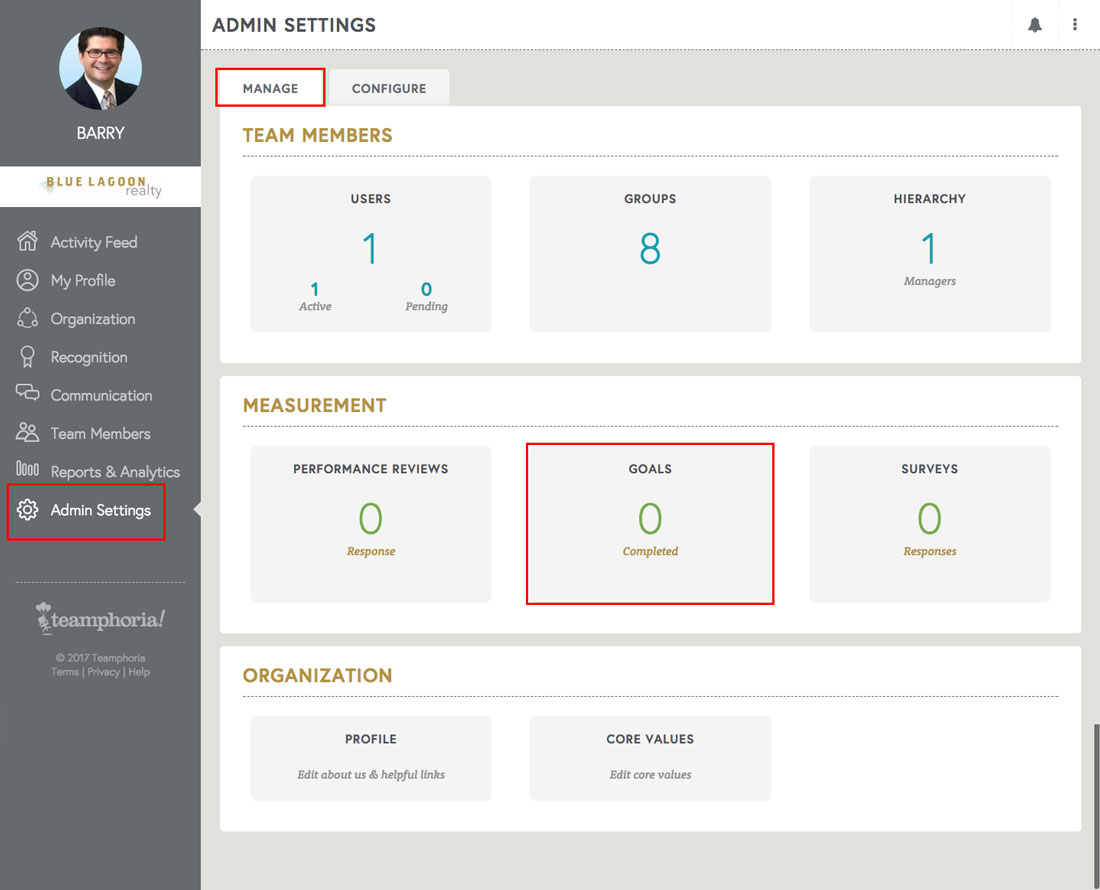
Step 1: Select the Admin Settings link in the left-hand navigation. Select the Manage tab -- then select Goals under Measurement.
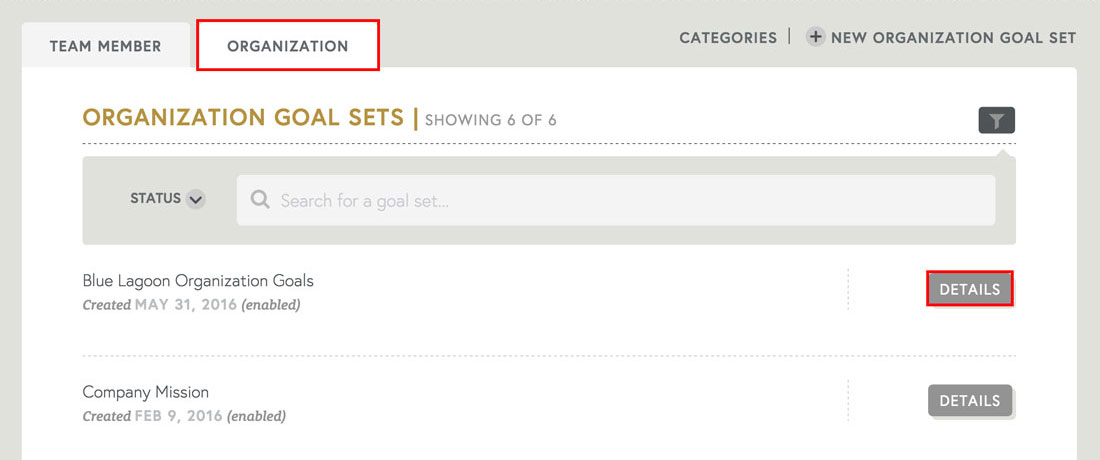
Step 2: The Performance Goals dashboard shows a list of any Team Member Goal Sets you have created -- either enabled or disabled.
Select any existing Goal Set to add a new organization goal.
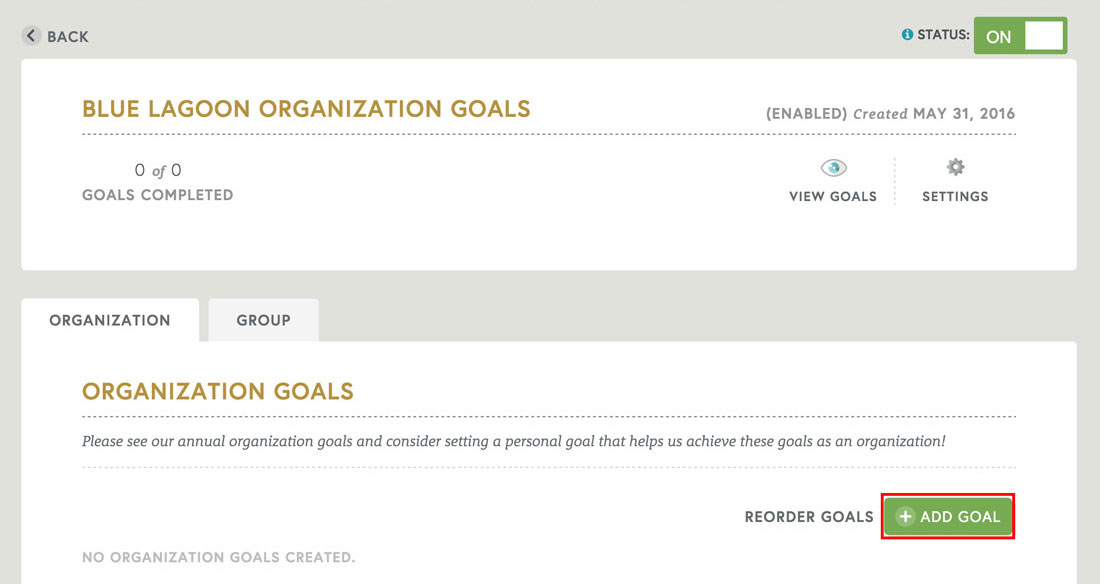
Step 3: Select the +Add Goal button.
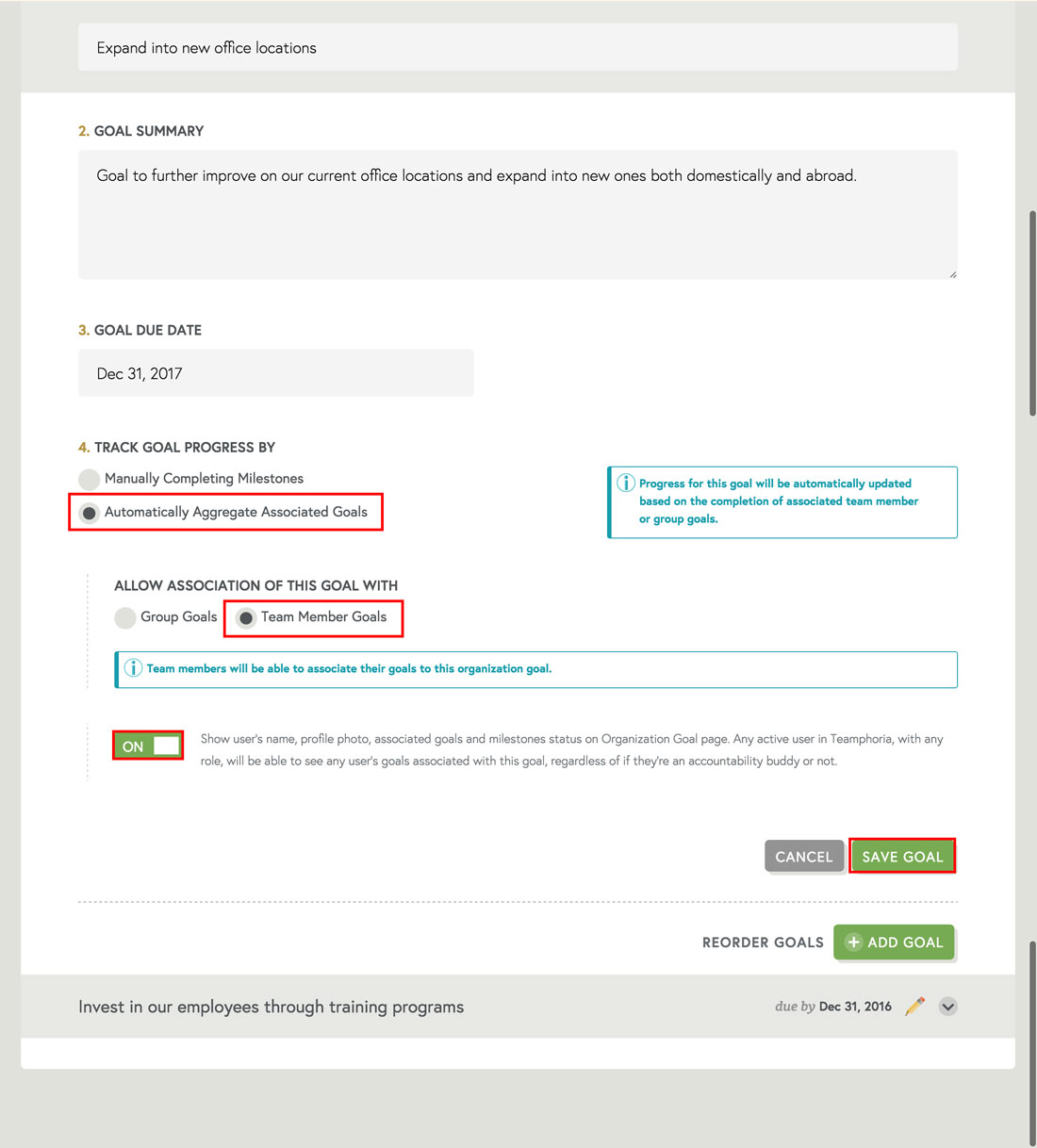
Step 4: Give the goal a title, optional summary, and optional due date. Make sure to select the radio button titled Automatically Aggregate Associated Goals under the Track Goal Progress By option. Then select the Team Member Goals radio button to automatically pull in all Team Member goals that are connected to this organization goal.
Further determine if you want associated Team Member goals to be viewable by all Teamphoria users on the organization goals page. Toggling this option ON will show a Team Member's profile picture, name, and any associated goals and milestones.
Keep this option toggled to OFF if you only want to mathematically aggregate associated goals to determine progress, but do not want each individual Team Member's associated goals to be viewable by all active users.
Select Save Goal to add your new organization goal to your organization goal set.
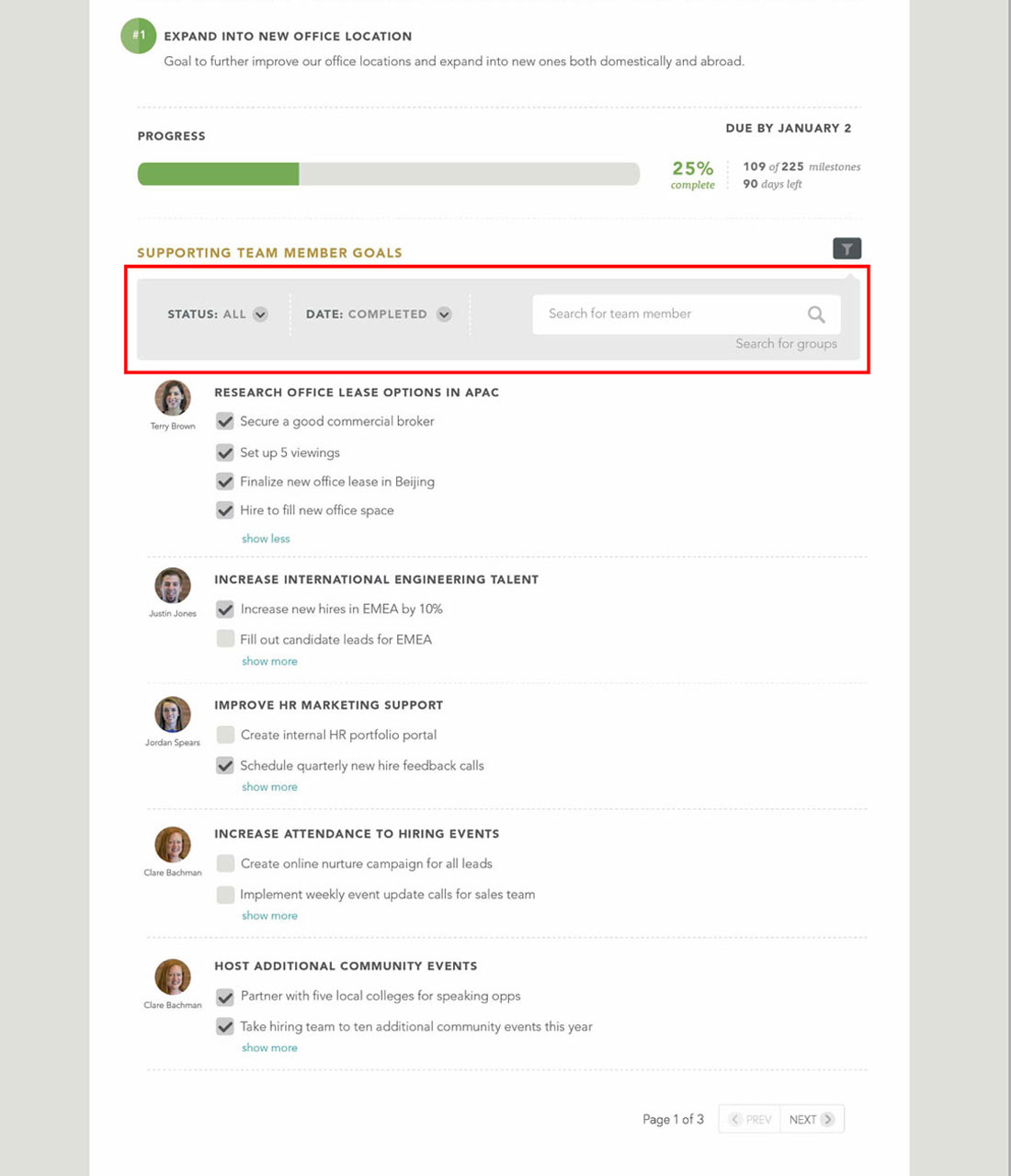
Step 5: Once you have saved your new organization goal, all Teamphoria users will be able to associate their goals with that organization goal. If you decided to aggregate associated user goals, and allow those goals to be viewable on the organization goal page, below is what that would look like.
Please note: The filter bar highlighted in red will only be viewable to those with an HR_Admin role. No other users will be able to filter this list.
That's it! You've now created an organization goal that automatically aggregates any associated Team Member goals to determine progress!